


Emoji Battery & Shimeji Pets
4.611.00 Reviews
App Specs
- Version
- 1.0.1
- Updated On
- License
- Free
- Downloads
- 100,000+
- Developer
- ZAppsolution
- Categories
- Productivity
- Platform
- Android
Screenshots
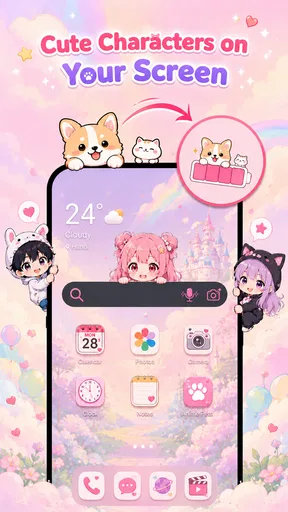
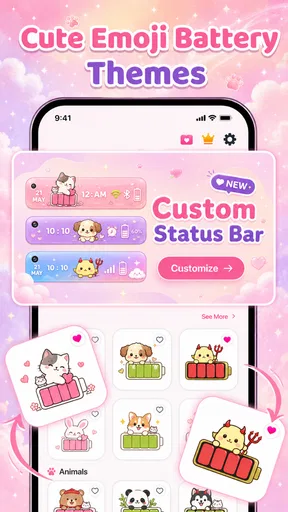
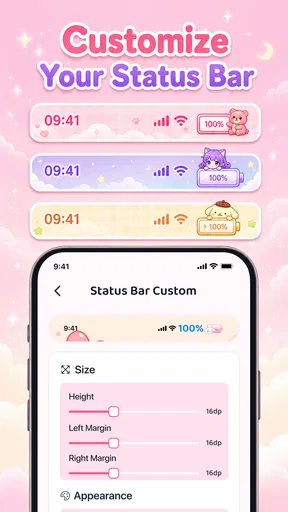
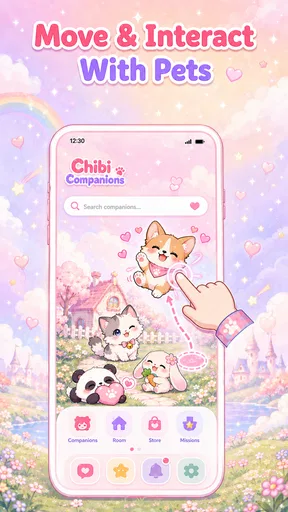
 Analysis by AppCompare
I like small Android tools that make a phone feel more personal without trying to become an entire productivity system. Emoji Battery & Shimeji Pets takes that approach by turning the battery display into something more playful and adding cute Shimeji-style pets to the screen. After spending time with it, I see it as a lightweight personalization app first and a practical battery aid second. It does not replace a serious battery monitor, but it can make an everyday status check more enjoyable.
The app comes from ZAppsolution and sits in the productivity category, although its real appeal is visual customization. It is free to install, rated for Everyone, and works on Android 8.0 or later. The current release is 1.0.1, and its 4.5 average from around 3.3 thousand ratings suggests that the basic idea connects with many users. More than 100 thousand people have installed it, which also gives it a useful level of visibility for a small customization tool.
How I used the battery display and screen pets
My first useful habit was to treat the battery icon as a quick glance rather than a full diagnostic panel. The emoji-style battery presentation makes the remaining charge easier to notice emotionally: a cheerful icon feels different from a warning-style one when the phone is getting low. That does not make the percentage more accurate, of course, but it can make me pay attention sooner than a tiny standard symbol in the status bar.
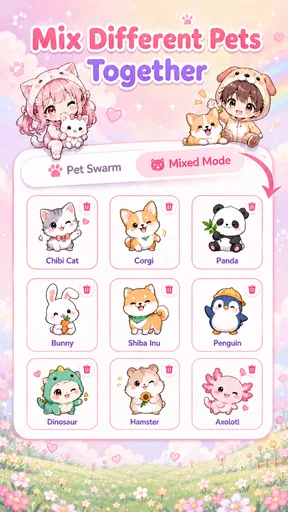
The Shimeji pets serve a different purpose. They are decorative companions that add movement and character to the Android screen, so I approached them as a home-screen accent rather than a tool I needed to operate constantly. I found that the experience works best when the pet supports the look of my wallpaper instead of competing with every icon and notification.
A realistic everyday use is checking the phone during a busy morning. I might be leaving home, glance at the screen, notice the expressive battery treatment, and decide whether to plug in before commuting. Later, while waiting for a message or listening to music, the little character adds personality without requiring me to open another dashboard. That is a modest benefit, but it is exactly the kind of small interaction this app is built around.
There is an important distinction between this and a conventional battery monitor. A standard utility usually focuses on temperature, charging behavior, consumption history, or app-by-app drain. Emoji Battery & Shimeji Pets focuses on visibility and mood. If I need to investigate why my phone is losing power quickly, I would use Android’s built-in battery settings or a dedicated diagnostic tool instead. If I simply want the battery state to feel more noticeable and less plain, this app has a clearer reason to exist.
Building a repeatable baseline
I recommend starting with one simple arrangement instead of changing every visual option immediately. Pick a battery style that remains readable against the wallpaper, place the pet where it does not cover frequently used controls, and use the phone normally for a day. This gives a better sense of whether the overlay is genuinely helpful or merely novel during the first few minutes.
Worth Reading Before You Choose

EA SPORTS FC Mobile 26 Is a Bigger Football Game, but It Takes Time

Flipboard Shows What News Apps Must Do Beyond the Feed

Switching to Android Auto Means Rethinking Your Driving Routine

Google Calendar Makes a Crowded Week Easier to Manage

Ludo King Makes the Most of the Minutes Between Plans

Baby Panda World Brings Quick Play to Modern Phones, but Its Game Library Feels Busy
That baseline matters because decorative elements can be charming in isolation but distracting in daily use. I paid attention to whether the pet interfered with tapping icons, reading widgets, or reaching the notification area. A position that looks cute on a static home screen may feel awkward when the phone is used one-handed. The best setup is not necessarily the most animated or noticeable one; it is the one I stop thinking about while still enjoying it.
I also found it useful to judge the battery design at different brightness levels. A bright indoor screen can make an emoji icon look clear, while outdoor glare may reduce the contrast. Checking it in both situations helps avoid choosing a style that is attractive at home but difficult to interpret on the move. This is a small workflow improvement, but it is more valuable than endlessly browsing visual choices without testing them in context.
Settings worth checking before settling in
The first settings I would examine are the ones that affect how much of the screen the pet occupies and how visible the battery element remains. The app’s appeal depends on being present without becoming an obstacle. If a character sits over a widget, a game control, or a frequently tapped area, I would move it or simplify the arrangement rather than tolerate the inconvenience for the sake of decoration.
It is also worth checking how the chosen battery icon reads at a glance. Some users will naturally prefer a bold emoji with a strong expression, while others may want something quieter that blends into the interface. I would choose based on recognition speed, not only appearance. A useful icon should tell me that the charge is changing without forcing me to stop and interpret an elaborate design.
Because this is a free app with optional purchases priced from $3.99 to $9.99 per item, I would explore the basic experience before spending anything. The free starting point is enough to decide whether the overlay fits my phone and habits. Paid items may be appealing to someone who wants a particular visual theme, but customization is not automatically better just because it offers more choices. I would only pay after identifying a style I expect to keep using.
The age rating of Everyone makes the app approachable for a broad audience, especially people who want a friendly screen decoration rather than a technical utility. Still, adults who prefer a completely clean interface should think about that visual personality. The same cheerful design that makes a phone feel warmer can look unnecessary on a minimalist home screen. This is a matter of taste, but it strongly affects whether the app feels useful or intrusive.
Android compatibility beginning with version 8.0 makes it accessible to many older devices as well as newer ones. On an older phone, I would be especially conservative with the arrangement: one pet, a readable battery treatment, and no unnecessary visual clutter. I would also watch for any impact on how comfortably I can navigate the launcher. The app’s concept is simple enough that it should not need to dominate the device to be enjoyable.
Settings that improve everyday readability
My practical rule is to separate the “cute” decision from the “clear” decision. First make sure the battery state is easy to recognize. Then choose a pet and position that complement it. Reversing that order can lead to a beautiful layout where the most useful information becomes hard to see.
I would also take a screenshot of the preferred arrangement and compare it with the phone’s normal home screen after a few hours. That comparison reveals whether the pet adds character or simply makes the interface busier. It is an especially useful check for people who already rely on several widgets, calendar panels, or smart-home controls.
Notifications are another reason to keep the layout restrained. A decorative companion should not make it harder to notice a real alert. If the screen feels crowded when new notifications appear, reducing the pet’s prominence is a better solution than dismissing alerts or constantly rearranging the launcher.
Faster patterns for experienced users
Once the basic setup feels comfortable, I would build a repeatable routine around it. My preferred pattern is to check the emoji battery treatment at natural transition points: before leaving home, before starting navigation, and before opening a demanding game or video app. This turns the visual element into a small reminder without pretending it can explain every cause of battery drain.
Shortcuts and habits work best when they connect the app to actions I already take. If the battery looks low, I can switch to Android’s battery settings, reduce screen brightness, or connect a charger. The app does not need to perform those tasks itself to be useful; it can act as the prompt that gets me to take them earlier. This is where the decoration becomes a practical cue rather than just a novelty.
I would avoid changing the pet every day. Constant switching makes it harder to decide whether the app improves the experience, and it can turn a calm home screen into another source of fiddling. Choosing one character for a week gives a more honest test. If I still enjoy seeing it after the novelty fades, that is a better sign than being impressed during the initial setup.
Another efficient pattern is to use the app differently on different devices. On a personal phone, a visible pet can be fun and expressive. On a work phone, I might choose the least distracting battery treatment or skip the pet entirely. The app is not equally suitable for every context, and forcing the same decorative style everywhere misses one of its strengths: it can be tailored to how the device is actually used.
For families, the Everyone rating and friendly presentation may make it an easy personalization choice, but I would still help younger users place the pet away from important controls. A child may prioritize the most entertaining position, while a parent may care more about clear battery awareness and uncomplicated navigation. Setting it up together can produce a better balance than simply choosing the most colorful option.
When the usual alternatives are better
Android’s standard battery indicator remains better for users who want the least possible visual interference. It is already integrated into the system, familiar, and focused on the essential status signal. A dedicated battery app is better for people who need charts, charging analysis, or troubleshooting. A launcher or widget pack is better for someone whose main goal is broader home-screen control rather than a battery-themed accent.
Emoji Battery & Shimeji Pets makes sense when the battery display and the character are part of the same personal style. That combination is more specific than a generic widget and lighter than replacing the entire launcher. I would recommend it to someone who enjoys expressive interfaces and wants a small daily touch of personality. I would skip it if I dislike floating decorations, need technical battery information, or use the phone in situations where every screen element must stay unobtrusive.
Advanced limits and the trade-offs behind the charm
The biggest limitation is that visual feedback should not be confused with deeper battery intelligence. An emoji can make a low charge easier to notice, but it cannot tell me whether a background service, weak signal, aging battery, or high screen brightness is responsible. That distinction matters because a user who installs this expecting a troubleshooting tool may feel disappointed even if the customization itself works well.
Screen space is the second trade-off. A Shimeji pet needs somewhere to appear, and any visible character competes with icons, widgets, and notifications. This is not necessarily a flaw; it is the cost of the feature. The right question is whether the character earns that space through enjoyment or convenience. For me, it does when the placement is deliberate. For a minimalist, the answer may be no.
There is also a maintenance cost, even if it is small. Every overlay or visual customization needs occasional attention when the wallpaper changes, the launcher layout is reorganized, or the phone is used in a different way. A placement that worked on one home screen may not work after adding a calendar widget. I would revisit the arrangement after major layout changes instead of assuming the original position will remain practical.
Purchases deserve a similarly measured approach. The free entry point lowers the risk of trying the app, but optional paid items can make customization tempting before I know which look I actually want. My advice is to use the basic setup through a normal week first. If the app becomes part of the phone’s identity, a paid visual item may feel worthwhile; if I stop noticing it, spending more would not solve the underlying lack of interest.
The app is also not the right answer for users who want automation. Someone looking for battery-based routines, scheduled power-saving actions, or detailed charging alerts should look toward Android’s system tools or an automation-focused application. This app can support a habit by making the status more visible, but it should not be treated as a replacement for those systems.
Who will get the most from it
I think the strongest audience is people who enjoy character-themed customization but still want one practical reason for the app to stay on the phone. The battery connection gives the decoration a job, even if that job is simply making a glance more memorable. Fans of cute interfaces, younger users, and anyone bored by the standard status bar are likely to understand the appeal quickly.
It is less suitable for professional users who need a neutral presentation, people with crowded launchers, and anyone sensitive to screen clutter. It may also be a poor match for users who install battery tools specifically to diagnose performance. In those cases, the app’s visual focus is not a weakness in itself; it is just aimed at a different need.
My mastery verdict after using it as a daily habit
The best way to use Emoji Battery & Shimeji Pets is as a visual reminder, not as a battery laboratory. Start with a readable battery style, place one pet where it cannot interfere with normal taps, and keep the arrangement unchanged long enough to judge it fairly. Then connect the low-battery cue to actions you already trust, such as charging or opening Android’s own battery controls.
I appreciate that the app has a clear personality. It does not try to compete with full productivity suites or pretend that a cute icon can replace system information. Its value comes from making a routine glance more pleasant and giving the screen a little character. That makes it more focused than many broad customization tools, although also less useful for anyone seeking deep control.
The free price makes trying it straightforward, while the optional purchases leave room for users who want to personalize further. I would not recommend buying anything immediately; I would first see whether the pet remains welcome after the first week and whether the battery treatment is still readable in real conditions. That small test separates lasting usefulness from first-impression excitement.
My final recommendation is positive but specific. I would suggest it to a friend who wants a friendly Android screen, enjoys Shimeji-style companions, and likes the idea of turning battery checks into a more noticeable habit. I would point that friend toward a conventional battery utility instead if the goal were diagnostics, automation, or detailed power management. Used within its proper limits, this productivity app is a charming layer over an everyday phone routine, and its strongest feature is the way it makes a tiny piece of information feel more personal.
Pros
- Cute animated pets make checking battery levels more entertaining.
- Battery information is displayed in a friendly
- easy-to-understand style.
- Shimeji characters add personality to the phone experience.
- Lightweight concept that is simple to set up and use.
- Suitable for users who enjoy customization and kawaii-style designs.
Cons
- Animated overlays may feel distracting during everyday phone use.
- Some features or characters may require in-app purchases.
- The app can consume extra battery when animations run continuously.
- Limited appeal for users who prefer a clean
- minimal interface.
- Permissions for overlays may concern privacy-conscious users.
FAQs for Emoji Battery & Shimeji Pets
What is Emoji Battery & Shimeji Pets?
Emoji Battery & Shimeji Pets is a customization app that combines a battery-status display with animated emoji-style characters and Shimeji pets. After installation, users can typically choose a character, place it on the screen, and use the battery indicator to check their device’s remaining power. It is mainly designed for entertainment and personalization rather than advanced battery management or performance optimization.
How does the battery widget or indicator work?
The app generally displays your phone’s current battery percentage through an emoji, pet, widget, or themed visual element. Depending on your device and the version installed, you may need to allow widget placement, notification access, or permission to run in the background. Battery readings can occasionally update with a short delay because Android and iOS manage background activity differently.
What are Shimeji pets, and can they appear over other apps?
Shimeji pets are small animated characters that move around your screen and react to touches or simple interactions. On compatible Android devices, the app may request permission to display characters over other applications, allowing the pets to remain visible while you use your phone. This feature may be restricted on some devices, and iOS usually offers more limited system-wide overlay behavior.
Does Emoji Battery & Shimeji Pets drain the battery or use much storage?
The application is usually lightweight in storage, but animated pets and background updates can consume additional battery compared with a static wallpaper or ordinary widget. The impact depends on animation frequency, screen time, notification settings, and how aggressively your phone limits background processes. If battery life becomes a concern, reducing animations or disabling the floating pet can help.
Is Emoji Battery & Shimeji Pets free to download and safe to use?
The app may be available as a free download, although some characters, themes, features, or customization options can require advertising, in-app purchases, or a subscription. Before installing, review the store listing, developer information, ratings, and requested permissions. Avoid granting access that seems unrelated to the app’s purpose, and download only from the official Google Play Store or Apple App Store.


